AWS EBS- Elastic Block Store
Before we start what is EBS, let’s first understand why we need EBS??
An EC2 machine loses its root volume (main drive) when it is manually terminated. Unexpected terminations might happen from time to time (AWS would email you). Sometimes, you need a way to store your instance data somewhere.An EBS (Elastic Block Store) Volume is a network drive you can attach to your instances while they run. It allows your instances to persist data.
Amazon Elastic Block Store (Amazon EBS) provides persistent block storage volumes for use with Amazon EC2 instances in the AWS Cloud.
What is mean by persistent storage???
Persistent storage is any data storage device that retains data after power to that device is shut off. It is also sometimes referred to as non-volatile storage. Hard disk drives and solid-state drives are common types of persistent storage.
Once it attached, you can create file system on top of these volumes, run a DB etc. EBS are AZ specfic & automatically replicated within its AZs to protect you from component failure, offering high availability and durability. Amazon EBS volumes offer the consistent and low-latency performance needed to run your workloads. With Amazon EBS, you can scale your usage up or down within minutes — all while paying a low price for only what you provision.
Few Points for EBS Volume:
It’s a network drive (i.e. not a physical drive). It uses the network to communicate the instance, which means there might be a bit of latency. It can be detached from an EC2 instance and attached to another one quickly. It’s locked to an Availability Zone (AZ). An EBS Volume in us-east-1a cannot be attached to us-east-1b. To move a volume across, you first need to snapshot it. Have a provisioned capacity (size in GBs, and IOPS). You get billed for all the provisioned capacity. You can increase the capacity of the drive over time.
Types of EBS:
Basically two types:
SSD:
SSD-backed volumes optimized for transactional workloads involving frequent read/write operations with small I/O size, where the dominant performance attribute is IOPS
HDD:
HDD-backed volumes optimized for large streaming workloads where throughput (measured in MiB/s) is a better performance measure than IOPS.
SSD has two types:
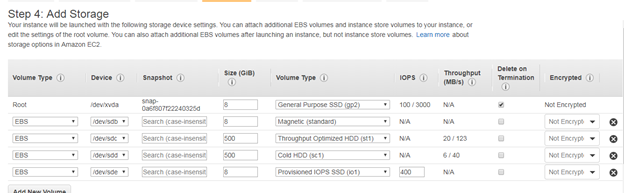
1: General Purpose SSD- gp2 2: Provisioned IOPS SSD (io1)
HDD has also types:
1: Throughput Optimized HDD (st1) 2: Cold HDD (sc1)
The default volume type is General Purpose SSD (gp2)!!
General Purpose SSD:
It balances price and performance for a wide variety of workloads.
Recommended for most workloads, System boot volumes, Virtual desktops, Low-latency interactive apps, Development and test environments, 1 GiB — 16 TiB, Small gp2 volumes can burst IOPS to 3000, Max IOPS is 16,000, 3 IOPS per GB, means at 5,334GB we are at the max IOPS
Provisioned IOPS SSD:
It is for low-latency or high-throughput workloads. Critical business applications that require sustained IOPS performance, or more than 16,000 IOPS per volume (gp2 limit). Large database workloads, such as: MongoDB, Cassandra, Microsoft SQL Server, MySQL, PostgreSQL, Oracle.
Throughput Optimized HDD:
Low-cost HDD volume designed for frequently accessed, throughput-intensive workloads
Cold HDD:
Lowest cost HDD volume designed for less frequently accessed workloads!!
 Types of Storage
EBS Snapshots:
Snapshot: The snapshot is simply the AMI. A snapshot is a backup of an EC2 volume that’s stored in S3. You can create a new volume using data stored in a snapshot by entering the snapshot’s ID. You can search for public snapshots by typing text in the Snapshot field. Descriptions are case-sensitive. So, snapshots are typically used for backups images.
Points about EBS Snapshot:
Incremental — only backup changed blocks.
EBS backups use IO and you shouldn’t run them while your application is handling a lot of traffic.
Snapshots will be stored in S3 (but you won’t directly see them.
Not necessary to detach volume to do snapshot, but recommended.
Max 100,000 snapshots.
Can copy snapshots across AZ or Region.
Can make Image (AMI) from Snapshot.
Snapshots can be automated using Amazon Data LifeCycle Manager.
EBS Migration- EBS Volumes are only locked to a specific AZ.
To migrate it to a different AZ (or region):
Snapshot the volume. Copy the volume to a different region. Create a volume from the snapshot in the AZ of your choice.
EBS Encryption
• When you create an encrypted EBS volume, you get the following:
• Data at rest is encrypted inside the volume
• All the data in flight moving between the instance and the volume is encrypted
• All snapshots are encrypted
• All volumes created from the snapshot
• Encryption and decryption are handled transparently (you have nothing to do)
• Encryption has a minimal impact on latency
• EBS Encryption leverages keys from KMS (AES-256)
• Copying an unencrypted snapshot allows encryption
- Snapshots of encrypted volumes are encrypted.
Encryption: encrypt an unencrypted EBS volume
• Create an EBS snapshot of the volume.
• Encrypt the EBS snapshot ( using copy ).
• Create new ebs volume from the snapshot ( the volume will also be
encrypted ).
- Now you can attach the encrypted volume to the original instance.
EBS vs Instance Store
• Some instance do not come with Root EBS volumes
• Instead, they come with “Instance Store” (= ephemeral storage)
• Instance store is physically attached to the machine (EBS is a network drive)
Pros:
• Better I/O performance
• Good for buffer / cache / scratch data / temporary content
• Data survives reboots
Cons:
• On stop or termination, the instance store is lost.
• You can’t resize the instance store.
- Backups must be operated by the user.
Point to Note:
EBS is already redundant storage (replicated within an AZ),But what if you want to increase IOPS to say 100 000 IOPS?
What if you want to mirror your EBS volumes?
You would mount volumes in parallel in RAID settings!
RAID is possible as long as your OS supports it.
Some RAID options are: RAID 0, RAID 1, RAID 5 & RAID 6 (not recommended for EBS)
RAID 0 (increase performance) RAID 1 (increase fault tolerance)